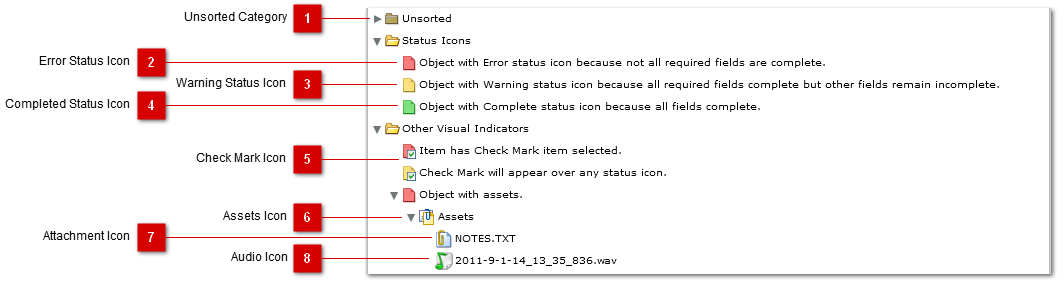
The Structure View is a tree view that represents the structure of the project. Categories are represented by folders and objects are represented by the page icons. The structure of the project can be changed by dragging and dropping single or multiple categories of objects. The Structure view also provides a visual indication of the completion status of the project by using different icons for objects representing status.
 Unsorted Category
The Unsorted category is where all new objects are placed when created unless another item in the tree is selected. This Category cannot be deleted or moved. If a category with objects is deleted, you can choose to move all the objects to the Unsorted category.
|
|
 Error Status Icon
The Error Status Icon is used to represent objects where not all required fields are completed by either entering a text value or recording an audio file.
|
|
 Warning Status Icon
The Warning Status Icon is used to represent objects where all required fields are completed but other fields incomplete.
|
|
 Completed Status Icon
The Completed Status Icon is used to represent objects where all fields are completed.
|
|
 Check Mark Icon
The check mark icon is added to any status icon to show when an object has the Check Mark item selected. |
|
 Assets Icon
When an object has assets, they will be visible in the structure tree under the "Assets" node of the object. |
|
 Attachment Icon
Icon used to indicate an attachment asset.
|
|
 Audio Icon
Icon used to indicate an audio asset.
|
|