|
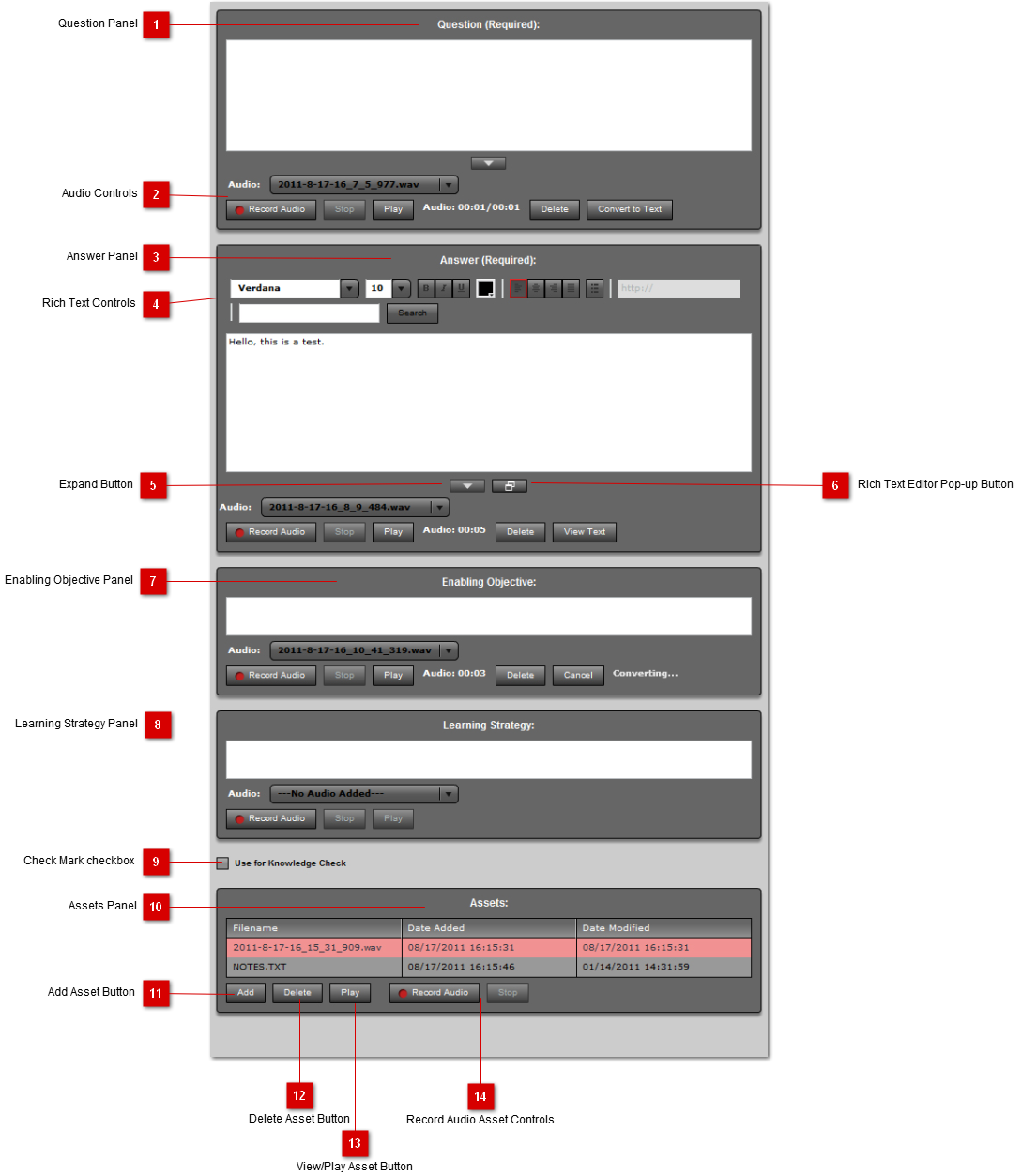
This form is used to add and edit items in the project. The different panels can be renamed, enabled/disabled and marked required from the options panel. All objects are added to the selected item in the structure view on the right-side of the main window. To Edit an object, doubleclick it in the structure view or select it and press the Edit button.
 Question Panel
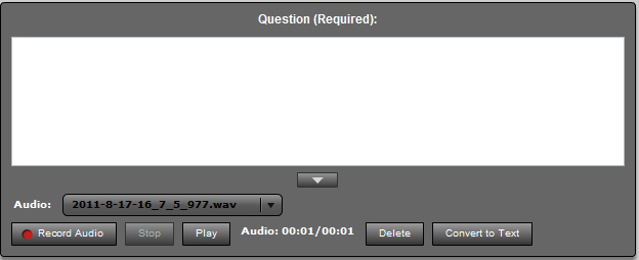
The quesiton panel is a required text panel with Audio Controls.This item in the form is always required when adding a new object. You can type in the question in the box provided, or record audio. | |
 Audio Controls
Audio controls allow for recording, playback and conversion of audio for each field. Each field can have multiple audio files added.
| |
 Answer Panel
| |
 Rich Text Controls
| |
 Expand Button
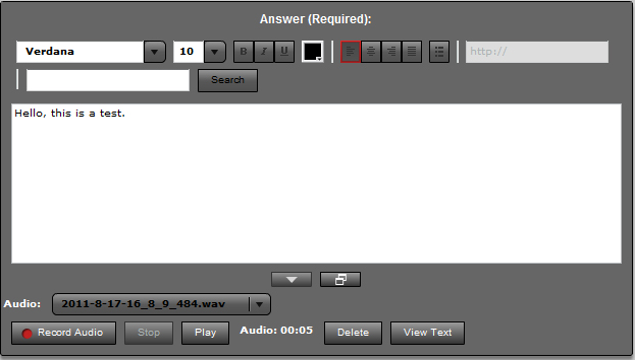
This button will become active if not all the text is visible in the box provided. This button will expand the textbox so all text is visible. When the box is expanded, a collapse button will become visible.
| |
 Rich Text Editor Pop-up Button
This button opens a Rich Text Editor pop-up window the full height and width of the application, with the selected text added. Once the text is saved in the pop-up, the text in the form is updated. | |
 Enabling Objective Panel
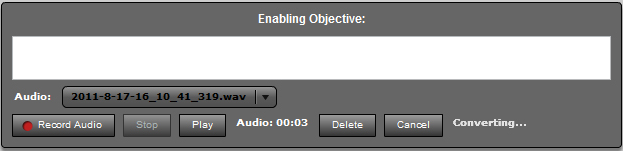
Enabling Objective panel is a normal text element panel with audio controls. This panel can be renamed, enabled/disabled or marked as required. | |
 Learning Strategy Panel
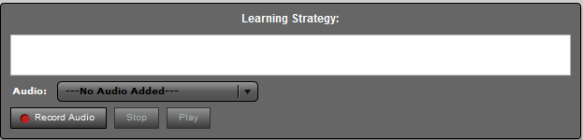
Learning Strategy panel is a normal text element panel with audio controls. This panel can be renamed, enabled/disabled or marked as required. | |
 Check Mark checkbox
This checkbox is used to indicate a check mark status on the current object. The label can be changed in the options panel. If this box is checked, a check mark (  ) will appear over the object icon in the structure view. | |
 Assets Panel
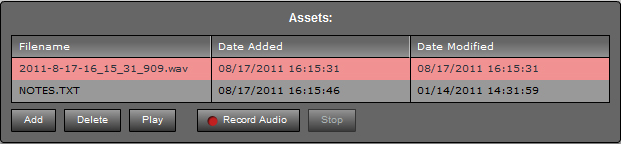
Use the assets panel to attach any type of asset file to the object. The attached file is embedded into the project. If you select an attached file, the View Asset button will become active. You can also record audio directly to the assets and play it back using the Play button.
| |
 Add Asset Button
Use this button to Add an asset to the object.
| |
 Delete Asset Button
Use this button to delete the selected asset from the object and project file.
| |
 View/Play Asset Button
Use this button to play back audio assets, or view attached assets in their native application.
| |
 Record Audio Asset Controls
Use these controls when recording/playing asset audio files.
| |
|
|