|
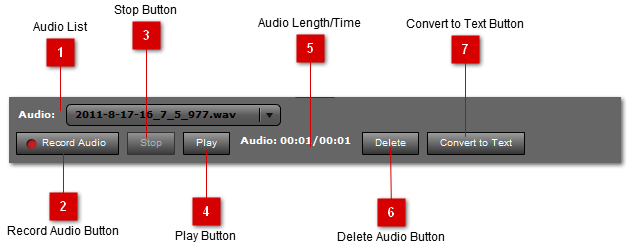
The Audio Controls are used to record audio for the associated field. You can also playback and delete the audio files or Convert the audio to text using the Speech-to-Text functionality. Multiple audio files per field are allowed.
 Audio List
The audio list lists all audio files attached to the associated field. The audio controls below will reflect the selected audio file in this pull-down, and will update when a new audio is selected.
| |
 Record Audio Button
Use this button to record new audio for the field. Once you press the Stop button, it will automatically be added to the audio list and selected. The length of the audio being recorded will be shown in the Audio Length control.
| |
 Stop Button
The stop button is used to stop the recording of audio, or to stop the audio during playback.
| |
 Play Button
This button will play the selected audio file. The play time and audio length will be reflected in the Audio Length control.
| |
 Audio Length/Time
Used to display the current playing time and length of the selected audio.
| |
 Delete Audio Button
This button deletes the selected audio from the audio list and also deletes the file from the project.
| |
 Convert to Text Button
This button creates a Convert Task for the selected audio file. The Convert Task will convert the audio to text using an online API and append the text to the associated field. The Convert Task will show up in the Tasks panel with it's current status.
This label shows the current status of the conversion task of the selected audio. The possible values are none (blank), Pending, or Converting. Once the Conversion Task is complete, the converted text is appended to the field and the View Text button is active.
The button is replaced with the View Text button when the selected Audio in the Audio list has already been converted to text. Pressing this button will open a pop-up containing the converted text, and you can choose to insert the text into the field.
| |
|
|