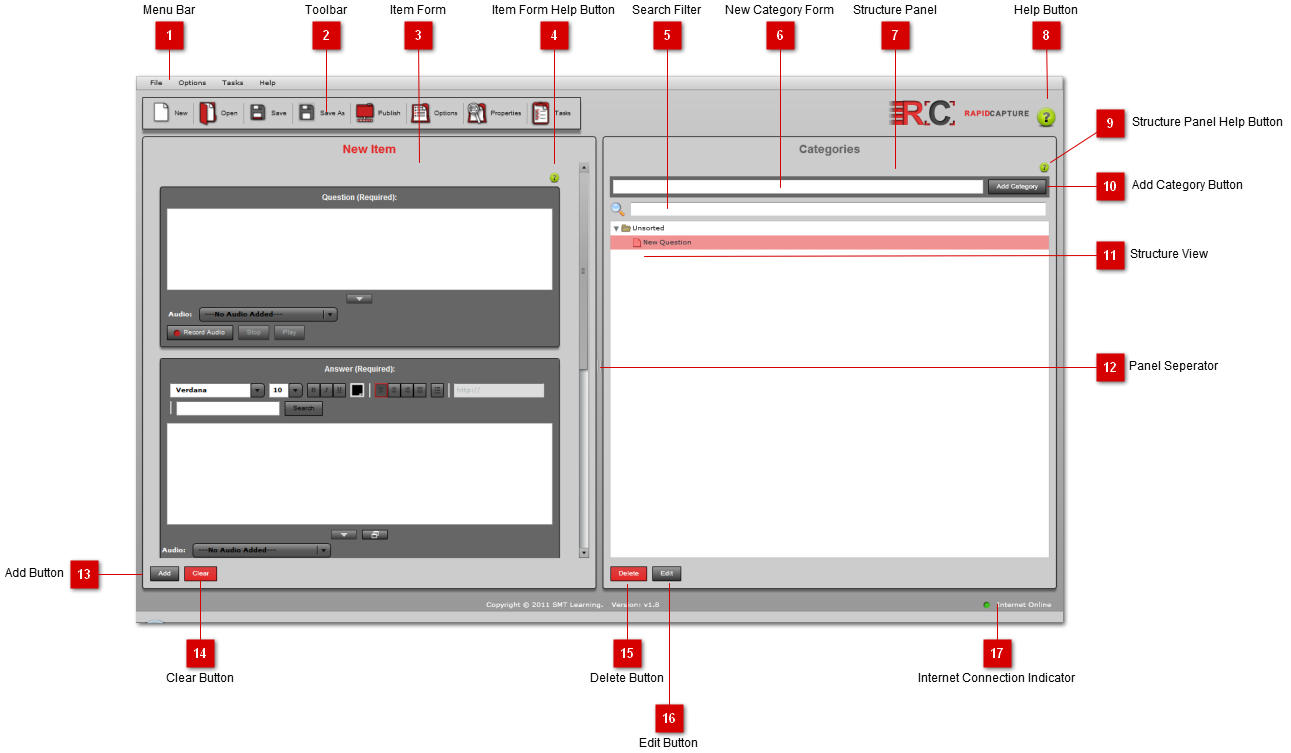
The User Interface of RapidCapture allows you manage your RapidCapture projects.
 Menu Bar
The menu bar contains access to common functions of the application. The individual menus are described in detail on the Menu Bar page. |
 Toolbar
The toolbar provides quick access to common functions and options. |
 Item Form
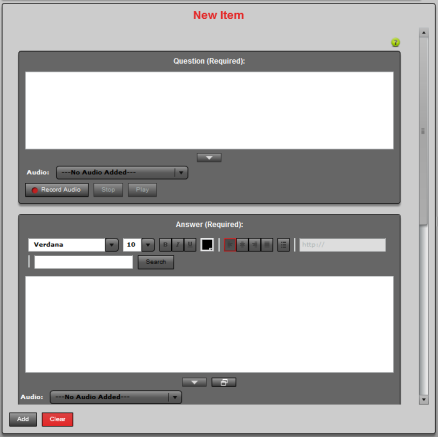
Form used to add or edit items. All items added using this form will apppear in the structure tree on the right. Elements in the form can be enabled/disabled, renamed and/or marked as required from the Options Panel. The form elements and functionality are descibed in detail on the Item Form page. |
 Item Form Help Button
Press this button to open the help documentation for the item form.
|
 Search Filter
Use this form to search the items already added to the project. Items are filtered in the tree as you type. This will search all item elements for the search term, and display items containing the search term in the tree. If you choose to edit an item with a search filter entered, the search term is highlighted in all elements, and the search term is added to the search field of the text editor elements.
|
 New Category Form
Use this form to add new categories to the organization. The category is added as a sub-category in the selected category. If an item is selected, the category is added ot the parent category. If nothing is selected, it is added to the root of the project.
|
 Structure Panel
|
 Help Button
Press this button to open the help documentation.
|
 Structure Panel Help Button
Press this button to open the help documentation for the structure panel.
|
 Add Category Button
Use this button to add the new category with the name typed into the new category form.
|
 Structure View
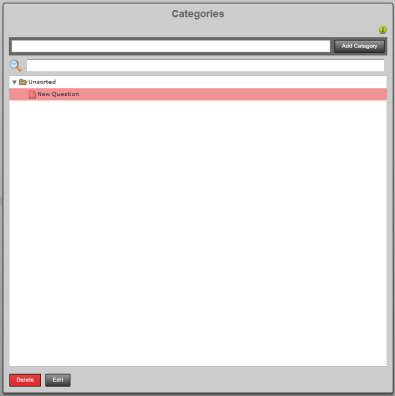
This tree represents the organization of the project. All added items can be organized by simple drag and drop, categories can contain sub-categories and items can exist at any level. Double-click on an item to edit it. See Structure View page for more details. |
 Panel Seperator
Use the panel seperator to resize the panels.
|
 Add Button
Use this button to add a new item to the project.
|
 Clear Button
Use this button to clear the new item form.
|
 Delete Button
Use this button to delete the selected item from the tree.
|
 Edit Button
Use this button to edit the selected item in the tree.
|
 Internet Connection Indicator
Indicates whether or not you are connected to the internet. Will go red with message "Internet Offline" when no internet connection is detected.
|
|