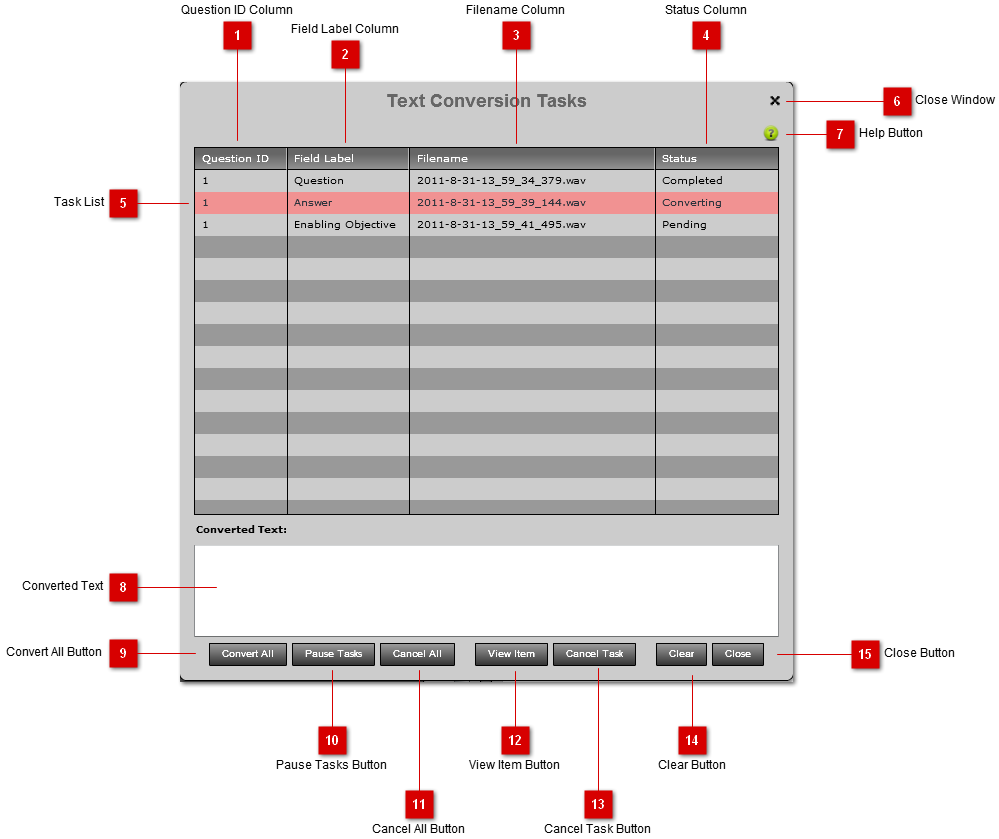
The Conversion Task Panel allows for viewing all tasks and their current status. Once a task is complete, you can view the converted text or clear the list. You can choose to view the item associated with the selected task and even choose to Convert All remaining audio files in the project.
 Question ID Column
The question ID of the conversion task.
|
 Field Label Column
The field label of the audio file in the conversion task.
|
 Filename Column
The filename of the audio file in the conversion task.
|
 Status Column
The current status of the conversion task. The status can be 'Pending', 'Converting', or 'Completed'.
|
 Task List
The Task List lists all conversion tasks for this session. Clearing the list will remove all completed tasks, but the converted text will remain in the item field.
|
 Close Window
Pressing the close window button will close the Tasks window. All conversion tasks will remain in the list and they will continue to perform.
|
 Help Button
Pressing the 'Help Button' will open the RapidCapture Help Documentation in a browser to the page describing the current window and it's functionality.
|
 Converted Text
The Converted Text area will be populated with the selected task's converted text if complete.
|
 Convert All Button
Pressing the 'Convert All' button will create a conversion task for all audio files in the project that have not already been converted and are not currently in the list.
|
 Pause Tasks Button
Pressing the "Pause Tasks" button will pause the conversion tasks and save the list to the project file. You can close the project and resume the tasks next time the project is opened. When the tasks are paused, the "Resume Tasks" button will be active.
|
 Cancel All Button
Pressing the "Cancel All" button will cancel all converting and pending tasks. The tasks will remain in the list until the list is cleared with the "Clear" button.
|
 View Item Button
Pressing the "View Item" button will open the item associated with the selected task in the Object Form. You can also double-click on a task to view the item. |
 Cancel Task Button
Pressing the "Cancel Task" button will cancel the selected task. The task will remain in the list until it's cleared.
|
 Clear Button
Pressing the 'Clear' button will remove all completed tasks from the the list. The converted text will remain in the item field and associated with the audio file.
|
 Close Button
Pressing the 'Close' button will close the Tasks window. All conversion tasks will remain in the list and they will continue to perform.
|