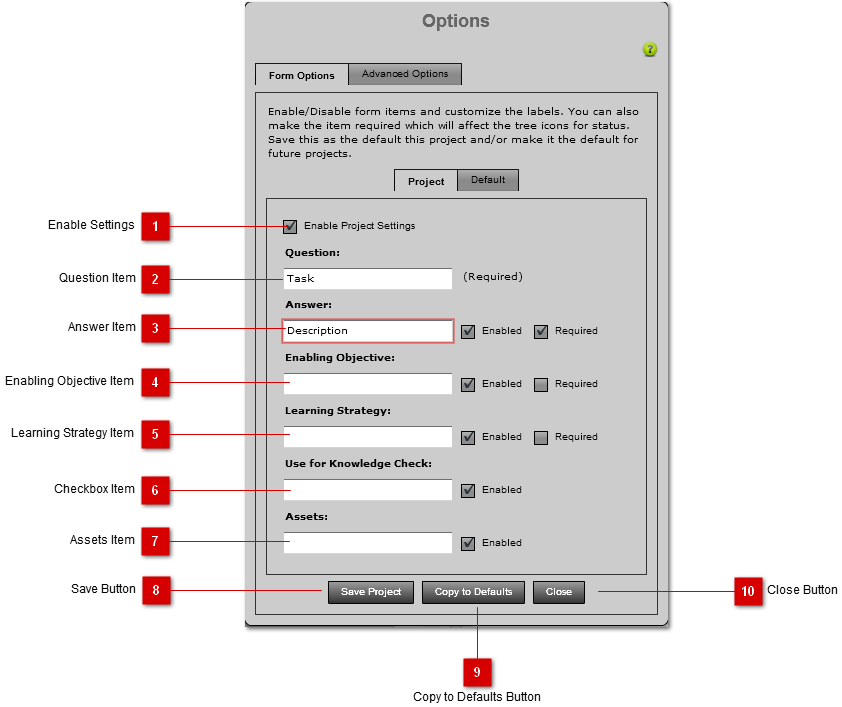
Form Options are used to customize the Item Form and the complete status' in the structure tree. If a form item is enabled, it will show up in the item form, otherwise it will be hidden. If a form item is Required, the object will appear with the Error status icon (  ) in the tree until a value for the field is entered (text or audio).
 Enable Settings
Check this box to enable the Project Settings. This will enable the option controls, and apply the Project Settings to the current project once Save Project is pressed.
|
 Question Item
Enter the label for Question Item field.
|
 Answer Item
The answer item allows you to change the label for the answer field, disable the item or make it required.
|
 Enabling Objective Item
The Enabling Objective item allows you to change the label for the enabling objective field, disable the item or make it required.
|
 Learning Strategy Item
The Learning strategy item allows you to change the label for the learning strategy field, disable the item or make it required.
|
 Checkbox Item
The Checkbox item allows you to change the label for the checkbox field or disable the item. The checkbox is used to indicate a boolean status of the current object. If the checkbox is checked, a checkmark (  ) will appear over the object icon in the tree. |
 Assets Item
The Assets item allows you to change the label for the Assets section, or disable assets. If this control is disabled, the Assets controls will be hidden in the form unless an object already has assets.
|
 Save Button
Pressing this button will save the current Form Options in the current Project Only.
|
 Copy to Defaults Button
Pressing this button will copy all the Project Form Settings to the Default settings tab. You can then save the Default settings for the application.
|
 Close Button
Pressing this button will cancel any unsaved changes and close the window.
|
|